Links
Integration
Configuration - Smallinvoice
Log in to your smallinvoice account via https://app.smallinvoice.com:
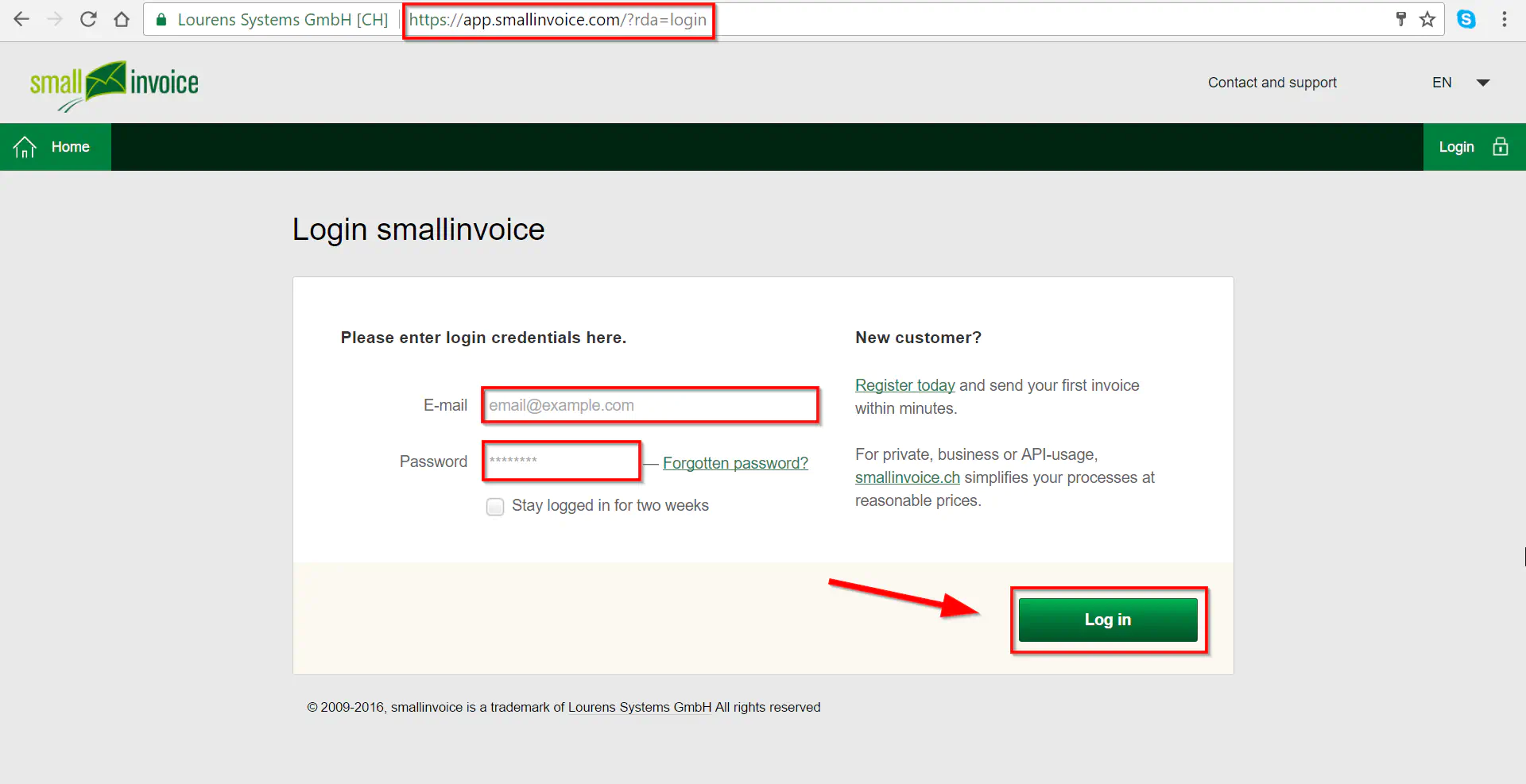
- Click “Home”
- Click “Configuration”
- Click “Integration”
- Click on the Payrexx logo to configure the settings:
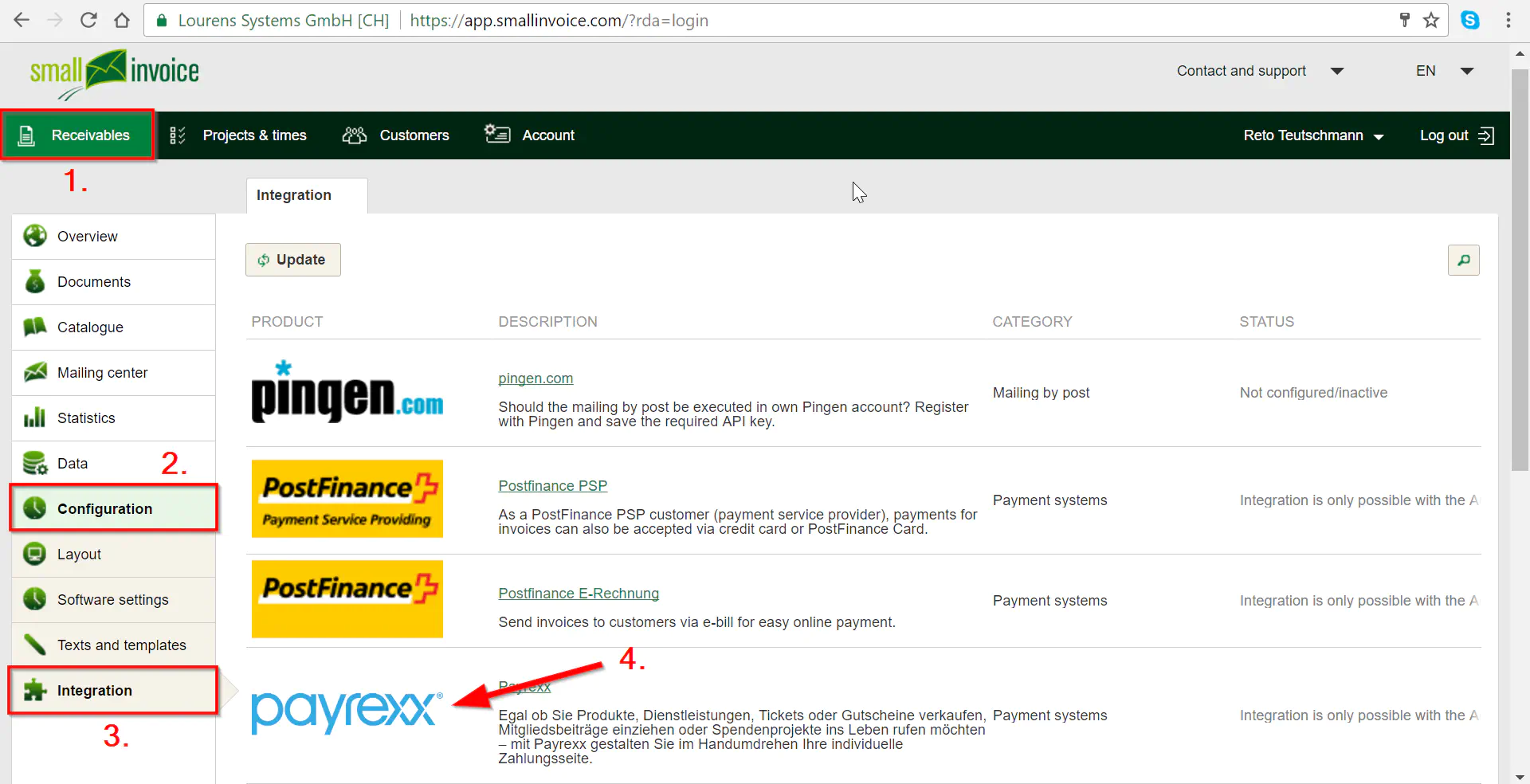
- Click “Edit”
- Enter your Payrexx account name such as https://yourname.payrexx.com
- Insert the “API Secret” that you copied from the Payrexx backend (see next screenshot)
- Click the link and choose the PSP’s and payment methods
- Enter the IDs of the PSPs and payment methods that you want to appear (you will find the PSP IDs here: https://developers.payrexx.com/docs/miscellaneous
Configuration - Payrexx
- Click “Settings”
- Click “API”
- Enter the URL https://app.smallinvoice.com/payrexx.php
- Choose “Normal (PHP-Post)”
- Click “Save” and wait
- Double click on “API Secret” so it gets blue
- Copy the text by clicking the right mouse button and then clicking on “Copy” or by using CTRL+C

Usage
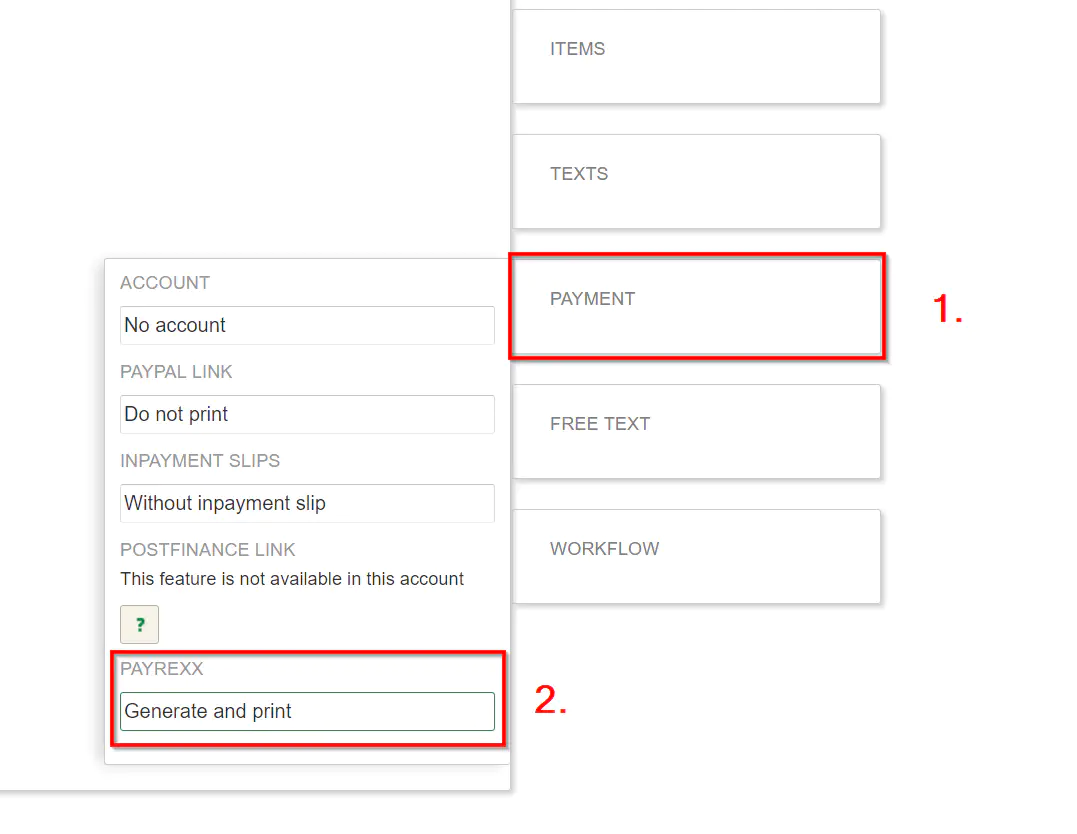
Create a new invoice:

- Click on “PAYMENT”
- Make sure that PAYREXX is set to “Generate and print”
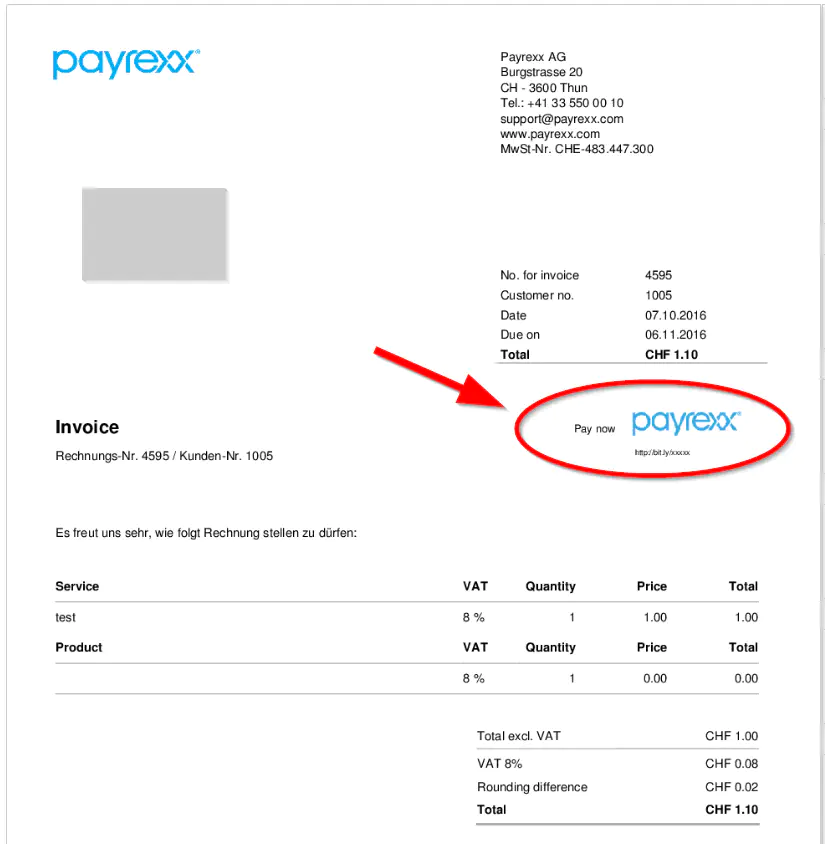
Now the Payrexx payment link appears on the invoice: