General
Links
- Link to Login Form of the given payment provider
- Link to the marketing website of the payment provider
Features
Payment Types
- ✅ One Time Payment
- ❌ Refund
- ❌ Partial Refund
- ❌ Recurring Payments (Subscription)
- ❌ Tokenization
- ❌ Pre-Authorization
Payment Methods
- Visa
- Mastercard
- Masterpass
- Amex
- Dinners Club
- JCB
- Discover Card
- Maestro
Setup
Configuration - Braintree
- Firstly, you need to create a Braintree account. Click here to register for a Braintree account.
- Choose the country where your company is registered by clicking on the drop-down menu arrow.
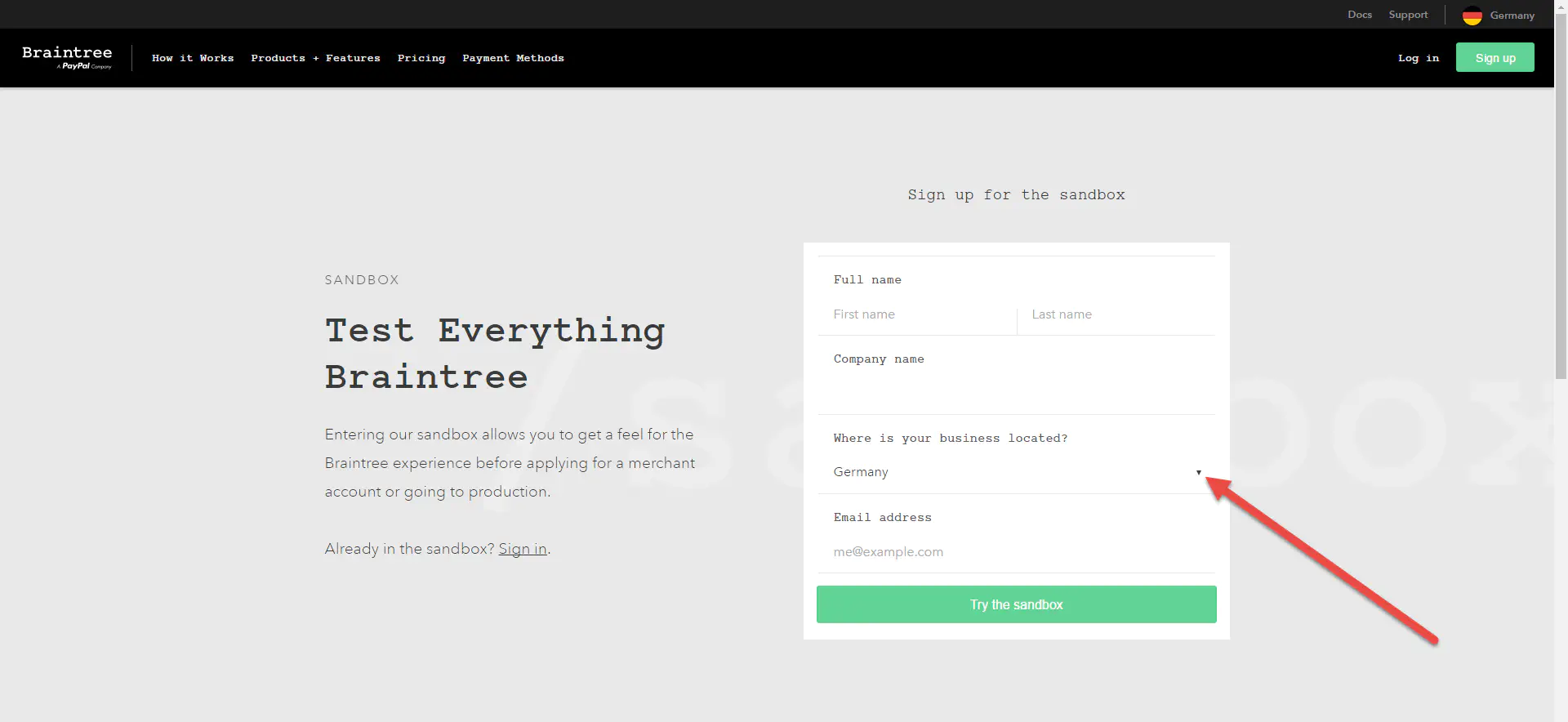
- Check your e-mail inbox to finalize the registration process by confirming your e-mail address and clicking on the link in the e-mail to log in to your Braintree account.
- Copy the “Sandbox Keys & Configuration” data from the Braintree account and paste it into your Payrexx account by configuring Braintree as your payment service provider.
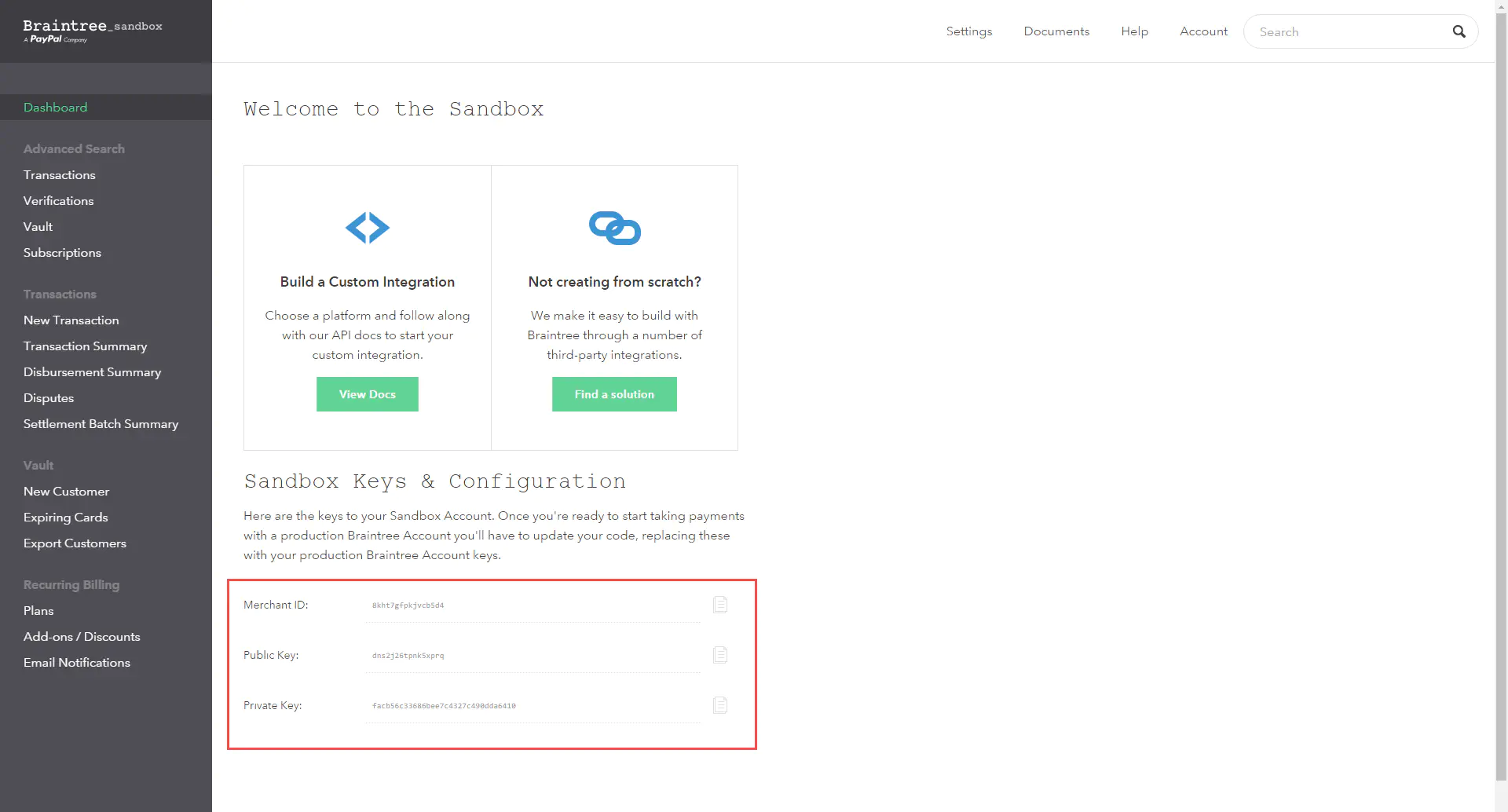
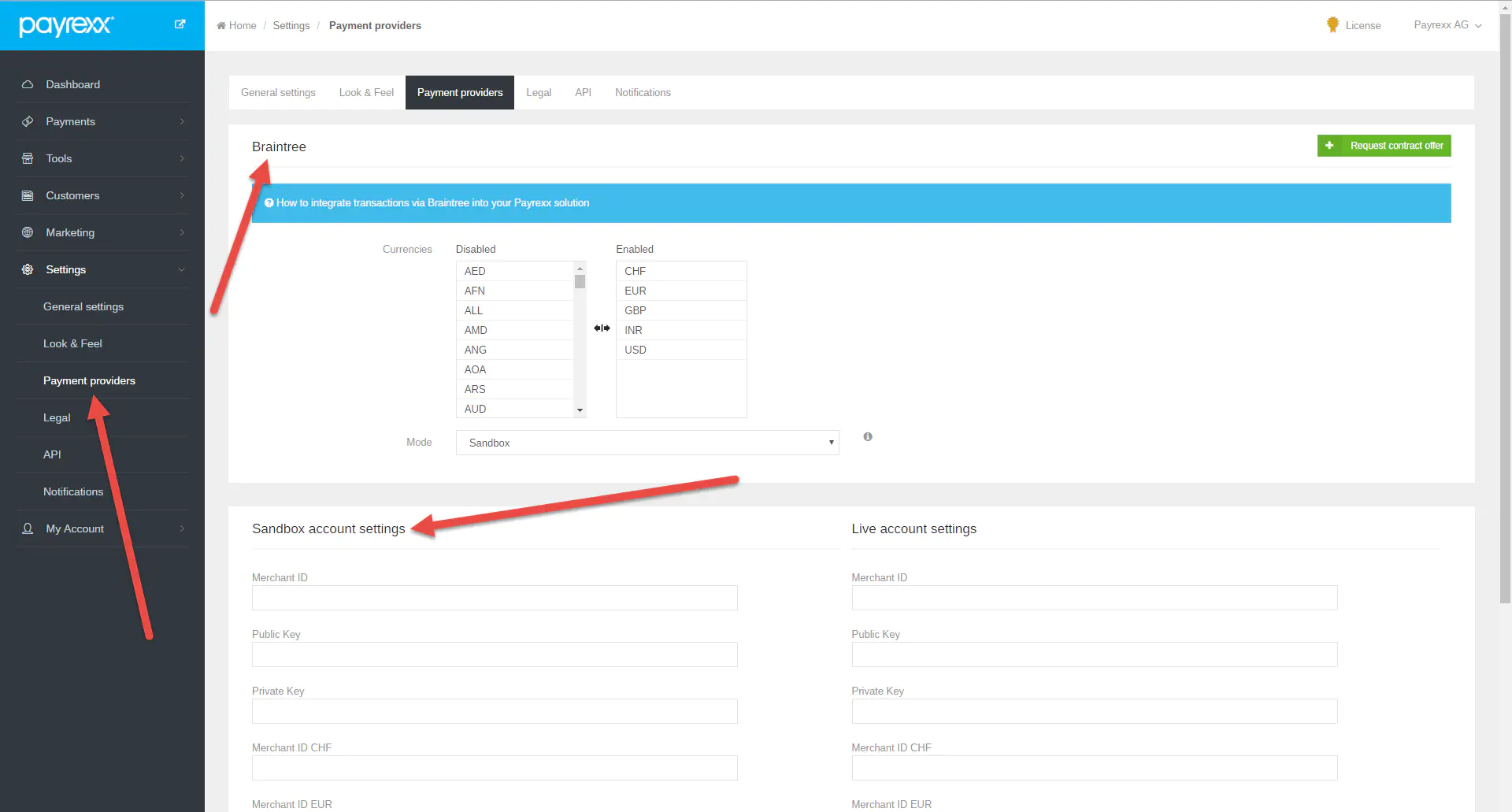
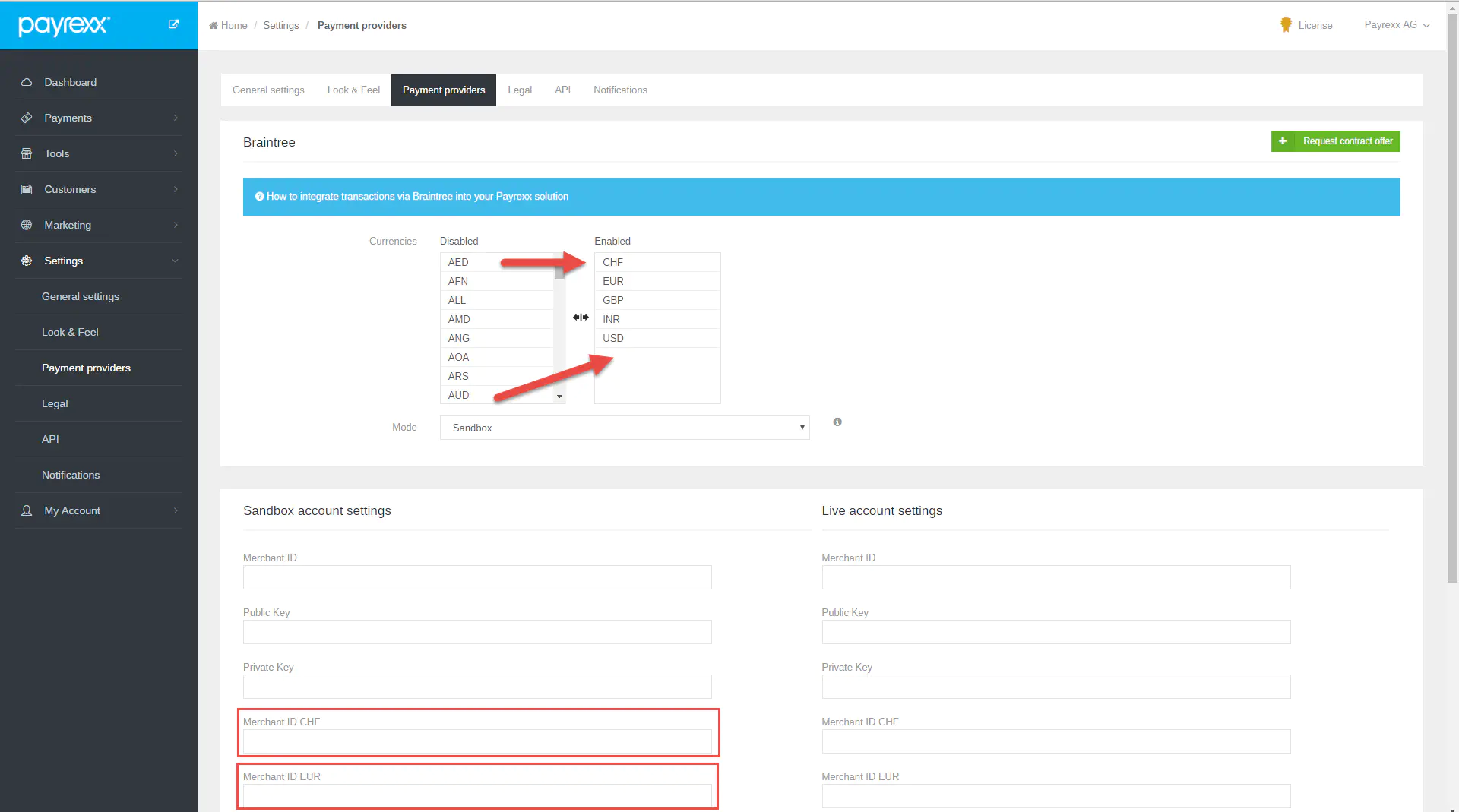
- Activate your preferred currencies.

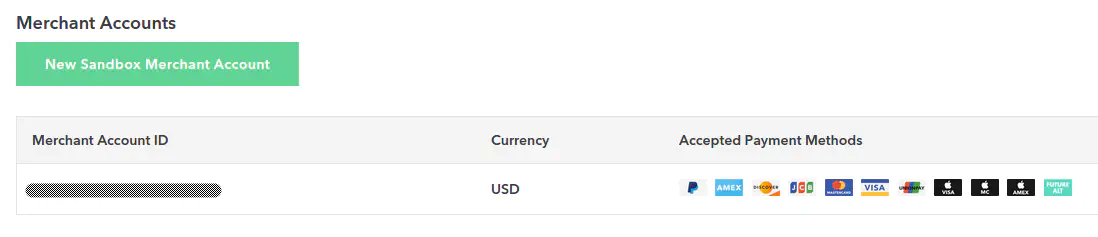
There needs to be one merchant account per activated currency.
- Copy and paste your “Merchant account IDs” for new currencies from your Braintree account to your Payrexx account.
- After you created and tested the Braintree test account, you can create the productive account. Create a Braintree account now.
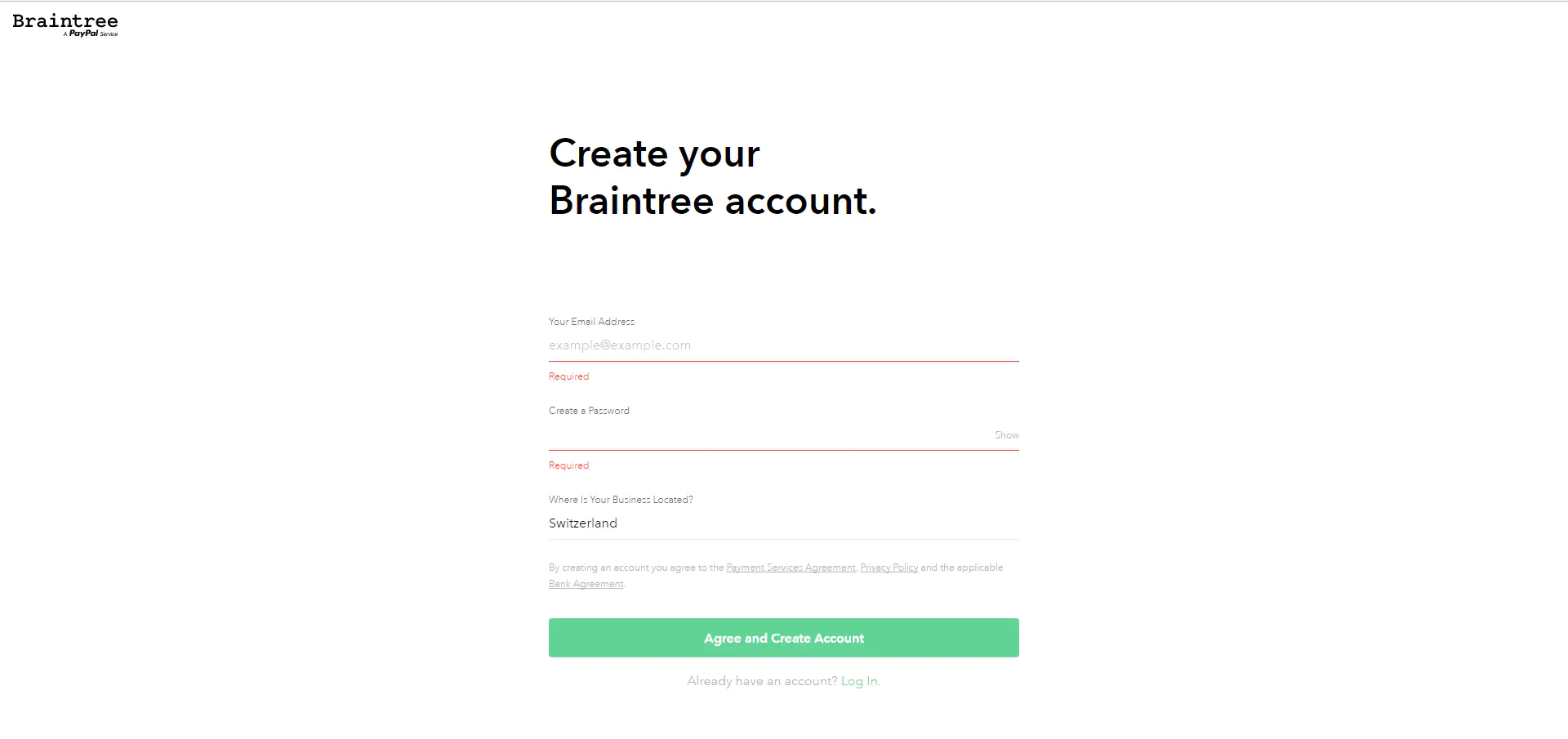
- After creating a productive account with Braintree, you will get notified by Braintree if further documents are required as well as once your account is confirmed.
- Once your Braintree is confirmed you can enter the productive Braintree account data into your Payrexx account:
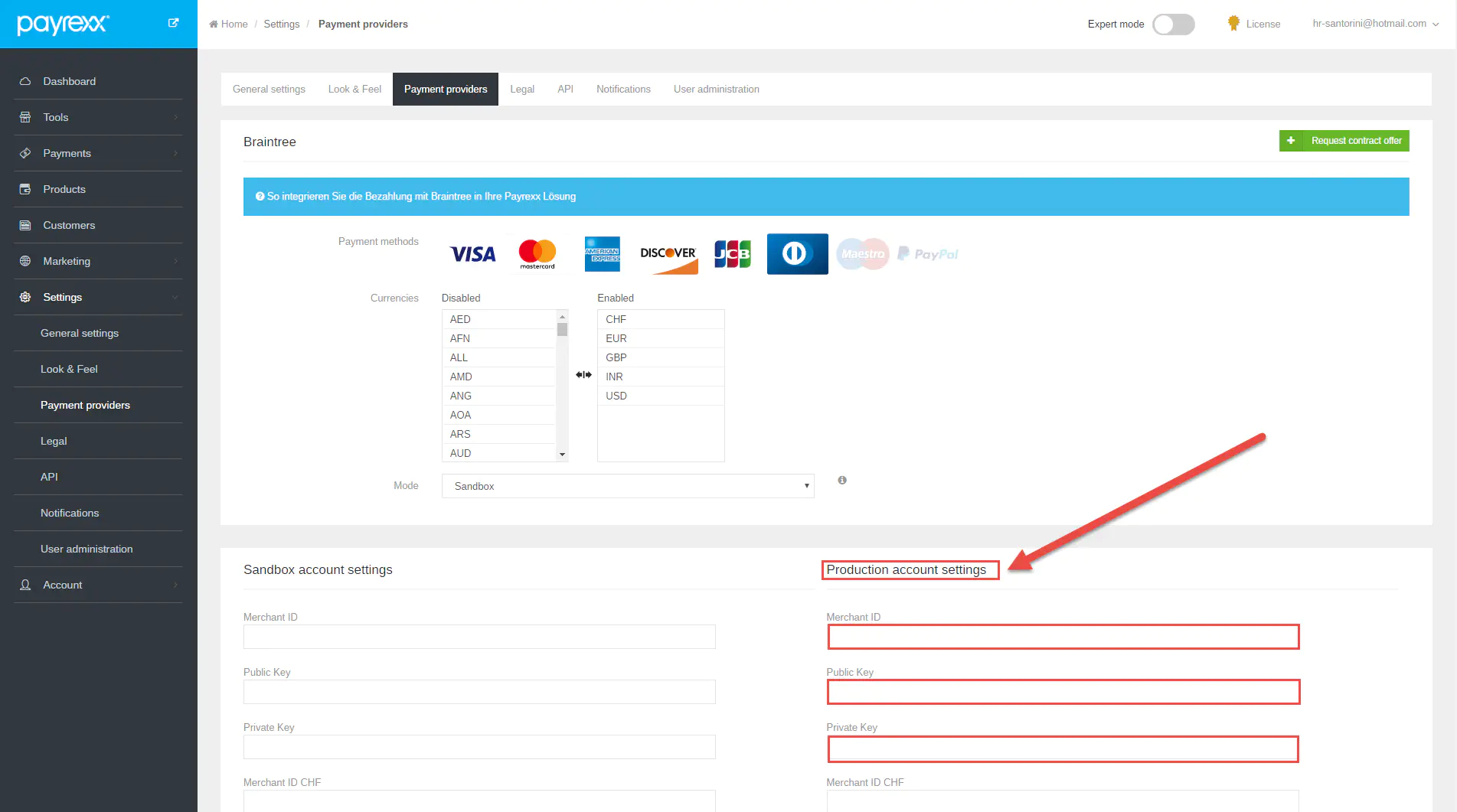
Your Payrexx is account is now ready to use!