Make sure to signup at Payrexx before you start - Signup here
As a specialist for Internet payments and mobile payments, Datatrans supports all electronic means of payment in Europe.
General
Links
- Request Production Account
- Request Test Account
- Production Datatrans Web Administration
- Test Datatrans Webadmin Pilot
Features
Payment Types
- ✅ One Time Payment
- ❌ Refund
- ❌ Partial Refund
- ❌ Recurring Payments (Subscription)
- ❌ Tokenization
- ❌ Pre-Authorization
Payment Methods
- Visa
- Mastercard
- Masterpass
- Postfinance Card
- Postfinance E-Finance
- Amex
- Dinners Club
- JCB
- Sofort
- BillPay
- myOne by UBS
- Electronic Cash
Setup
Configuration - Datatrans
Request an Offer
- Ask for a Datatrans offer at: Request Production Account
- Select “General” for the inquiry and ask for a “Webshop account” in the comment section.
Request a Test Account
Fill in the following form Request Test Account.
Multiple test accounts will be setup. You only need the “Web Payment Page” function. Configure the test account you received by following the steps listed below.
Settings
After the conclusion of the contract, Datatrans will provide you with a merchant ID and the access data for the requested account type.
- Production Datatrans Web Administration
- Test Datatrans Webadmin Pilot
Log in with your Datatrans account.
Note: If you don’t see a UPP Administration tab, you need to select first a merchant by clicking on “Change merchant” (top right corner).Open “UPP Administration” > “Security”
Activate the following setting on the “Server-to-Server service security” input mask:
“Protect server-to-server services with password”
If no password has been created, generate a new password and confirm the changes. Copy the password. (You must then enter this in the Payrexx administration under “Settings” > “Payment provider” > “Datatrans” in the “Merchant password” field.)
Next to the title “Server-to-Server service security” is a link with the name “Security signature”. Please follow this link.
Select the third option “Important parameters will be digitally signed (HMAC-SHA256) and sent with payment messages”. If no HMAC key has been created yet, please generate a new key and confirm the changes. (The HMAC key then must be added to the Datatrans settings.)
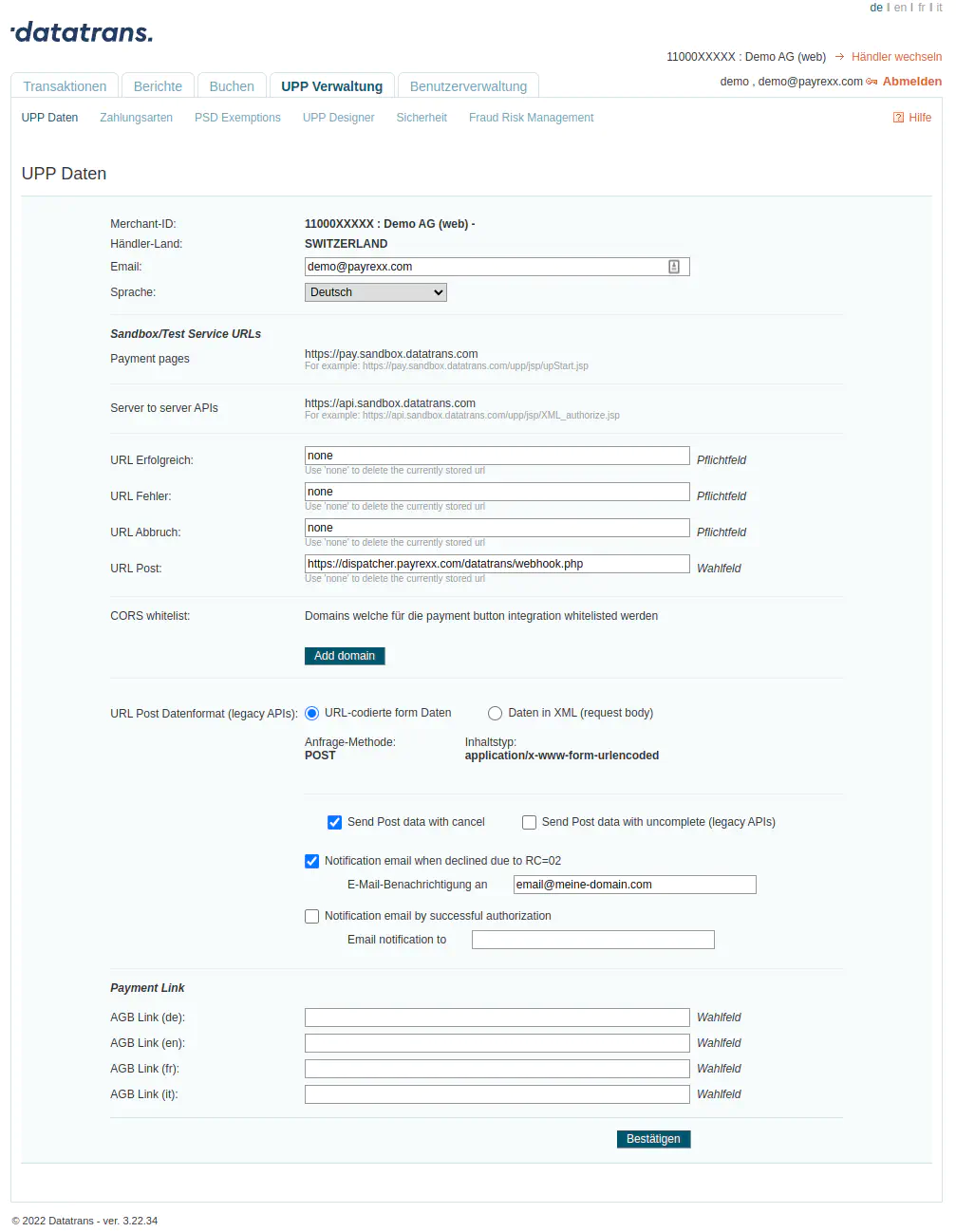
Open “UPP Management” > “UPP Data” and enter the settings according to the screenshot below. Confirm the changes.
URL Post: https://dispatcher.payrexx.com/datatrans/webhook.php
Configuration - Payrexx
- In your Payrexx administration, open the page “Settings” > “Payment provider”.
- Select “Datatrans” as (your new) payment provider.
- Insert the “Merchant ID”, “Merchant Password” and the “HMAC Key” into the “Connection Settings” and save the changes.